
Muse Payment Method Setup: Add Funds and Set a Spending Limit
Muse needs a way to pay before it can buy anything for you. This sets one up without linking a bank account or storing a credit card: you fund a prepaid balance, create a key with a daily spending limit, and paste that key into Muse. Three steps, about five minutes, and you don't repeat it.
What you need: the Snaplii app (iOS or Android), and Muse.
The three steps at a glance
You're doing three things, in this order: put money somewhere Muse can reach, decide how much of it Muse may spend per day, and hand Muse the key that reaches it.
Step 1 happens in your bank app. Steps 2 and 3 take one screen each.
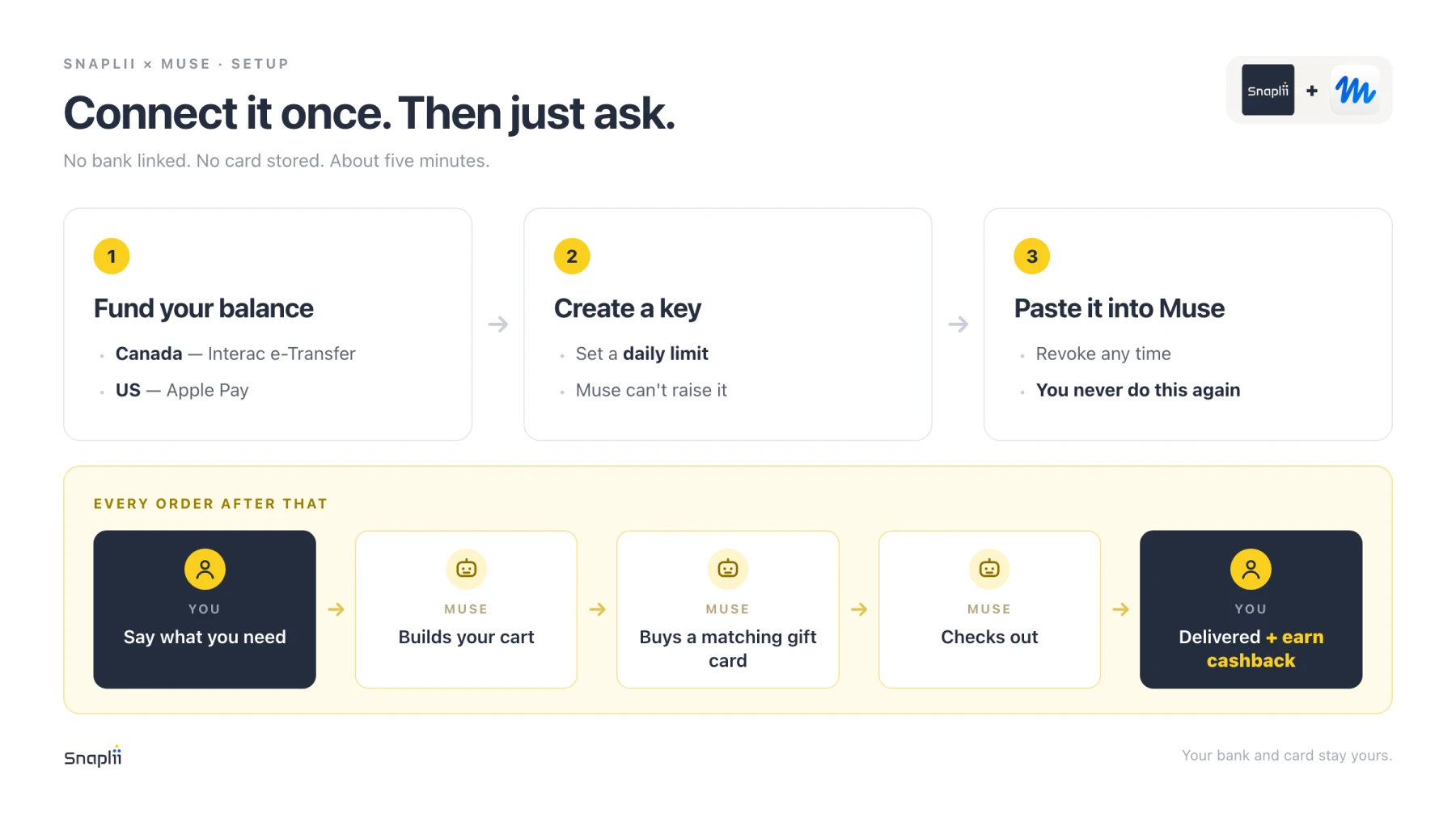
Step 1 — Fund your balance
Open the Snaplii app and add funds to your Snaplii Cash balance.
- In Canada: choose Interac e-Transfer. The app shows the recipient address and the message to paste into your bank's message field — copy both, send from your own bank app, and the money typically lands in about ten seconds.
- In the US: top up with Apple Pay.
There's no account to link and no card to store. You're pushing money from your bank to your balance, the same way you'd e-Transfer a person, and the connection ends when the transfer does.
How much? Whatever you expect to spend soon. This balance is the hard ceiling on everything Muse can buy — when it's empty, spending stops. Topping up again takes ten seconds, so start low.
Step 2 — Create an API key with a daily limit
In the Snaplii app, go to:
More → Payment Methods → AI Payment Management → + New API Key
Three fields:
| Field | What to enter |
|---|---|
| Key Name | Something you'll recognize later — muse works |
| Daily Limit | $100, $200, $500 or $1000 |
| Asset Access | Purchasable — this is the purchase scope Muse needs to complete an order. Gift Cards Only is the narrower option |
Tap Create, then copy the key.
About the Muse spending limit
The daily limit is the answer to how do I limit how much Muse can spend, and it's worth thirty seconds of thought before you tap Create.
It's enforced by Snaplii, not by the agent. Muse can't read it, can't argue with it, and can't raise it. If a day's orders hit the ceiling, the next purchase simply fails.
Start at $100. You can create a second key with a higher limit later, or revoke this one instantly — neither touches your balance.
That gives you two ceilings stacked: the daily limit on the key, and the balance underneath it.
Step 3 — Paste the key into Muse
Back in Muse, ask it to connect Snaplii. It installs the Snaplii tooling — confirm when it asks — and then tells you exactly what it needs.
Paste the key into the chat. That's the last step.
The key is exchanged immediately for a short-lived session token and isn't written to disk. What Muse keeps is a temporary credential that reaches one prepaid balance, under one daily limit.
You don't repeat any of this before your next order. There is no step 4.
Now just ask
Say what you want. Muse does the rest, in this order:
- Finds the item and builds the cart.
- Prices it, including fees and tip.
- Buys a gift card from your balance, sized to cover that total.
- Applies it at checkout and places the order.
- Reports back with the confirmation and ETA.
You never shop for a gift card — you ask for dinner, and buying the card happens inside the order. The merchant just sees an ordinary gift card at checkout, which is why this works across 300+ brands without any of them doing anything.
Cashback lands on qualifying orders automatically: up to 15% depending on the brand, at the same rate whether you check out or Muse does.
Here's what a finished order actually looked like — one sentence in, coffee on the desk, receipt included — or a household restock with store pickup.
Managing it afterwards
- Revoke a key any time in the app. Your balance is untouched; Muse just loses the ability to spend.
- Run more than one key if you use more than one agent — separate names, separate daily limits, revoked independently.
- Change the limit by creating a new key and revoking the old one.
- Gift card codes and PINs stay masked by default.
- Top up again whenever the balance runs low. Ten seconds, same flow as Step 1.
FAQ
How do I give Muse a payment method without linking my bank or card?
Fund a prepaid Snaplii Cash balance by Interac e-Transfer (Canada) or Apple Pay (US), create an API key in the Snaplii app, and paste that key into Muse. There's no bank login, no account linking and no stored card — Muse can only reach the prepaid balance.
How do I limit how much Muse can spend?
Set a daily limit when you create the API key — $100, $200, $500 or $1000. It's enforced by Snaplii and the agent can't read or raise it. The prepaid balance is a second ceiling underneath: when it's empty, spending stops.
Which Asset Access option should I choose?
Purchasable — that's the purchase scope Muse needs to complete an order on your behalf.
Do I have to do this setup again before each order?
No. Once the key is pasted into Muse, the connection persists. Future orders are just a conversation.
Set it up once. Then just ask.
Get started → snaplii.com/a2m | Developers → github.com/Snaplii-Inc/agent-to-merchant-payments
Muse is a product of Meta Platforms, Inc., which is not affiliated with and does not endorse Snaplii. Snaplii connects through its own public payment API.